

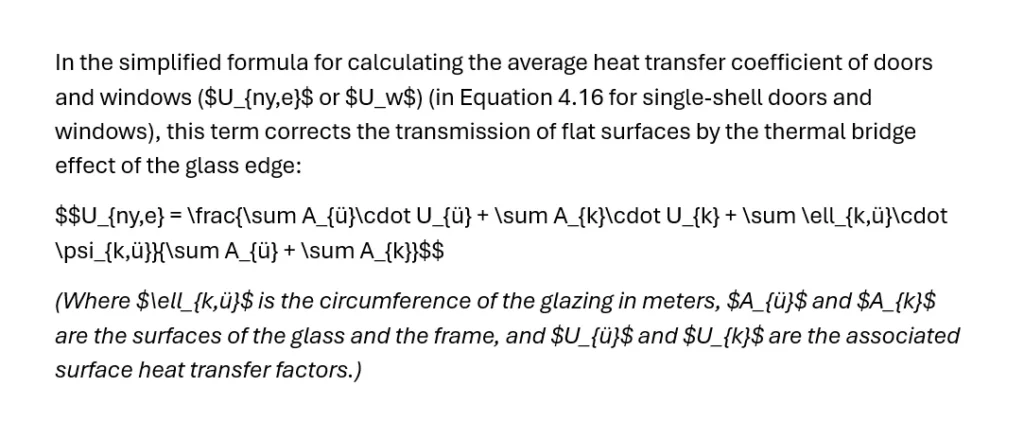
Generative AI—like Gemini—has become an essential daily tool for researchers, engineers, and academics. However, its use comes with a recurring professional pain point: handling mathematical and technical formulas. If you ask the AI to derive a calculation or specify a physical range, the output will almost certainly arrive in raw LaTeX format (for example: $550 - 700 \text{ kg/m}^3$).
When you copy and paste this text into Microsoft Word, the typographical layout immediately collapses: instead of professional equations, you get unreadable blocks of code. What can you do if your document is riddled with these expressions and you don’t want to spend days converting them manually?
Alternative Solutions: What Can Word Do Out of the Box?
The Built-in Lifesaver: The “Convert All” Button
If the formulas are already inside equation objects (but still as raw code), Word can transform them into a professional layout with a single click. To do this, open an empty equation field with the Alt + = shortcut, ensure LaTeX mode is selected in the top Equation ribbon, and under the Convert group, click All – Professional.
The Catch: If the formulas copied from Gemini arrived as plain text (simple characters), Word’s built-in feature remains completely blind to them. To use this Word feature, we first have to convert the formulas into equations—one by one. This is quite a hassle.
The Pro Solution: An Intelligent VBA Macro
If the formulas are hidden throughout the text between dollar signs ($...$), a custom macro is the only real solution.
However, Word’s internal programming environment (VBA) is notorious for its traps. If a macro isn’t careful enough, Word’s quirky behavior can cause it to process the same formula twice, clutter the Undo stack, or freeze at the end of a paragraph. The code below is a robust algorithm that uses isolated range management and a dynamic bookmark. It runs strictly within your selected text and converts the codes perfectly on the first pass, without errors.
Step-by-Step Macro Installation
To ensure this feature isn’t restricted to a single document but remains available in any open Word file in the future, it is best to install it into Word’s global template (Normal.dotm):
- Open any Word document.
- Press Alt + F11 (this opens the VBA development environment).
- In the left-hand list (Project Explorer), find
Project (Normal). - Right-click on
Normal, then choose Insert -> Module. - Copy and paste the following source code into the large, empty window on the right:
VBA
Sub ConvertLaTeXInSelection()
    Dim doc As Document
    Dim findRange As Range
    Dim targetRange As Range
    Dim formulaText As String
    Dim originalText As String

    Set doc = ActiveDocument

    ' SAFETY CHECK: If nothing is selected, display a warning
    If Selection.Start = Selection.End Then
        MsgBox "Please select the text containing the formulas you want to convert first!", vbExclamation, "No Selection"
        Exit Sub
    End If

    ' Hidden bookmark at the end of the selection that automatically tracks text movement
    Dim endRange As Range
    Set endRange = Selection.Range
    endRange.Collapse Direction:=wdCollapseEnd

    If doc.Bookmarks.Exists("LaTeXSearchEnd") Then doc.Bookmarks("LaTeXSearchEnd").Delete
    doc.Bookmarks.Add "LaTeXSearchEnd", endRange

    ' Turn off screen updating for speed and to prevent flickering
    Application.ScreenUpdating = False

    ' =========================================================================
    ' PHASE 1: Processing display equations between double dollar signs ($$...$$)
    ' =========================================================================
    Set findRange = doc.Range(Selection.Start, doc.Bookmarks("LaTeXSearchEnd").Range.End)

    With findRange.Find
        .ClearFormatting
        .Text = "$$[!$]@$$" ' Specifically searches for blocks between double dollar signs
        .MatchWildcards = True
        .Forward = True
        .Wrap = wdFindStop ' Strictly stops at the end of the selected range

        Do While .Execute
            ' If the search engine somehow overshoots the temporary bookmark, stop it
            If findRange.End > doc.Bookmarks("LaTeXSearchEnd").Range.End Then Exit Do
            originalText = findRange.Text

            ' Check if the content is valid (at least 5 characters: $$x$$)
            If Len(originalText) >= 5 Then
                ' Strip 2 dollar signs from the beginning and the end
                formulaText = Mid(originalText, 3, Len(originalText) - 4)

                If Len(formulaText) > 0 Then
                    Set targetRange = doc.Range(findRange.Start, findRange.End)
                    targetRange.Text = formulaText

                    Dim mathRange1 As Range
                    Set mathRange1 = doc.OMaths.Add(targetRange)
                    mathRange1.OMaths(1).BuildUp
                End If
            End If

            findRange.Collapse Direction:=wdCollapseEnd
            findRange.End = doc.Bookmarks("LaTeXSearchEnd").Range.End
            If findRange.Start >= findRange.End Then Exit Do
        Loop
    End With

    ' =========================================================================
    ' PHASE 2: Processing remaining inline equations between single dollar signs ($...$)
    ' =========================================================================
    ' Reposition the search range from the start of the selection to the dynamic bookmark
    Set findRange = doc.Range(Selection.Start, doc.Bookmarks("LaTeXSearchEnd").Range.End)

    With findRange.Find
        .ClearFormatting
        .Text = "$[!$]@$" ' Searches for parts between single dollar signs
        .MatchWildcards = True
        .Forward = True
        .Wrap = wdFindStop

        Do While .Execute
            If findRange.End > doc.Bookmarks("LaTeXSearchEnd").Range.End Then Exit Do
            originalText = findRange.Text

            ' Check if the content is valid (at least 3 characters: $x$)
            If Len(originalText) >= 3 Then
                ' Strip 1 dollar sign from the beginning and the end
                formulaText = Mid(originalText, 2, Len(originalText) - 2)

                If Len(formulaText) > 0 Then
                    Set targetRange = doc.Range(findRange.Start, findRange.End)
                    targetRange.Text = formulaText

                    Dim mathRange2 As Range
                    Set mathRange2 = doc.OMaths.Add(targetRange)
                    mathRange2.OMaths(1).BuildUp
                End If
            End If

            ' Collapse the search range past the completed work
            findRange.Collapse Direction:=wdCollapseEnd
            ' Update the end of the search range relative to the dynamically moving bookmark
            findRange.End = doc.Bookmarks("LaTeXSearchEnd").Range.End
            If findRange.Start >= findRange.End Then Exit Do
        Loop
    End With

    ' Clean up: delete the temporary background bookmark
    If doc.Bookmarks.Exists("LaTeXSearchEnd") Then doc.Bookmarks("LaTeXSearchEnd").Delete

    ' Restore screen updating
    Application.ScreenUpdating = True
    MsgBox "All inline ($) and display ($$) formulas in the selected text have been successfully converted!", vbInformation, "Done"
End Sub
- Press Ctrl + S to save, and you can close the VBA window.
How to Use It in Practice
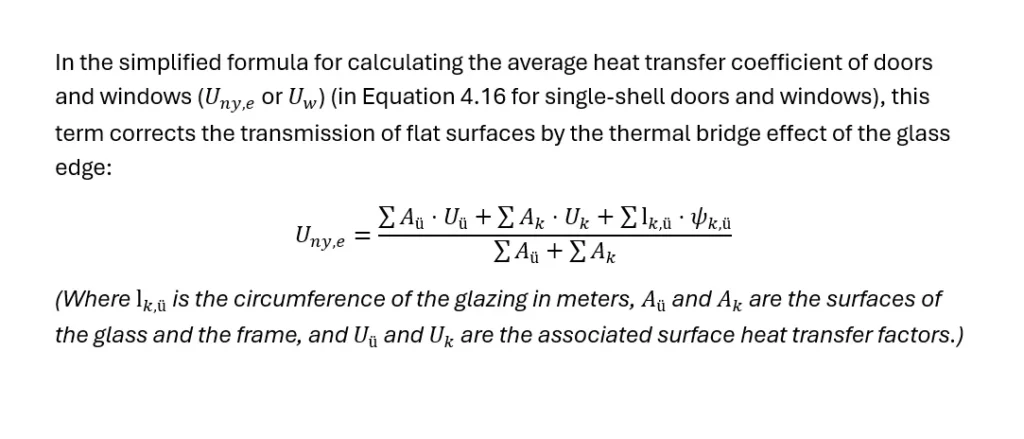
Running the macro makes data post-processing incredibly simple:
- Selection: Select the part of the document (a single paragraph, a chapter, or the entire text) containing the Gemini-style formulas.
- Launch: Press Alt + F8, select the macro named
ConvertLaTeXInSelectionfrom the list, and click Run. - The macro runs through the selected block in seconds behind the scenes, removes the unnecessary dollar signs, and replaces the raw codes with crisp, professionally formatted Word equations.
Expert Tip: If Word’s built-in LaTeX engine misrenders spaces or fractions after conversion for units (e.g., expressions containing slashes like
\text{ kg/m}^3), it is a good idea to wrap the parts inside the text block in plain quotation marks (for example:" kg/m"^3). With this fine-tuning, the final result will be absolutely flawless.