

There are many reasons why duplicates appear in your catalogs but even if you are careful while you import photos, encountering duplicates is inevitable. Here is how to use the plug-in Teekesselchen to find duplicates of photos.
This is a fast duplicate finder plug-in for Adobe Lightroom using EXIF meta-data. It requires Lightroom 3.x, 4.x, 5.x, 9.x, or CC 2015 and runs on Windows as well as on Mac OS X.
Get the Latest Version 1.9.0 (2021) from here: https://www.bungenstock.de/teekesselchen
Installation
- Download the latest teekesselchen.zip
- Unzip
teekesselchen.ziptoteekesslechen.lrplugin(Safari does this for your) - Start Lightroom Classic
- Open the Plug-In Manager from the menue (File > Plug-In Manager…)
- Click on Add and browse to unzipped
teekesslechen.lrplugin - Done
Usage
Read the tutorial in order to learn how you can get the best out of Teekesselchen. It is good to know that this plug-in marks and organizes your duplicate photos but never deletes them.
To detect duplicates Teekesselchen uses the meta-data of your photos. The EXIF capture time is the key value but only supports seconds as the smallest resolution. Therefore, the plugin may display false positives – different photos as duplicates. Those may be from a continuous shooting. To prevent such false positives, you should use the ExifTool option to compare more meta-data. You can find this option on the Rules tab (go to the help page). Teekesselchen does not delete any photos on its own, so you are on the safe side. It will only list duplicates and you can delete them in Lightroom.
Start Lightroom and follow the instructions below. To test the plugin and see results, it is a good idea to start with a catalog that contains duplicates.
Step 1: Select Photos
The plugin can scan an entire catalog or just a selection of photos. If you have not selected any photos or you have selected just one, the tool will scan the entire catalog. If you select two or more photos the plugin will scan only the selection.
Step 2: Start the cloned photo search
Make your choice and select: Library->Plug-in Extras->Teekesselchen Find Duplicates
It will bring the plugin summary page. Depending on the rules and settings that you have selected this screen will provide information and extra settings for the scan. The sample below denotes that 349 photos will be checked and it is emphasized that no duplicate photos will be removed or deleted automatically.
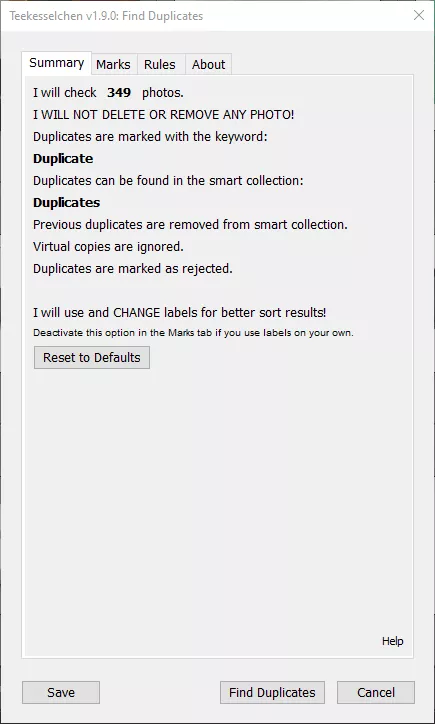
In this case, Teekesselchen indicates that it will mark duplicates with the keyword “Duplicate” and place them into a smart collection named “Duplicates”. Note that it will replace any results from the previous search. Additionally, the plugin ignores virtual copies during the search.
Step 3: Managing Duplicates in the Marks Tab
The Marks tab in Teekesselchen allows you to configure how identified duplicate photos are tagged and organized without permanently deleting them. You can assign a custom keyword (e.g., “Duplicate”) to all detected duplicates and automatically set their flag status to “Mark duplicates as rejected” for easy filtering. Additionally, enabling the color label option alters existing color labels to group and visually sort duplicate pairs side-by-side. To determine which file is kept as the original and which is marked as a duplicate, you can prioritize specific criteria—such as file format (RAW, DNG, HEIC), file size, image dimensions, ratings, or path lengths—by setting a numerical preference order.
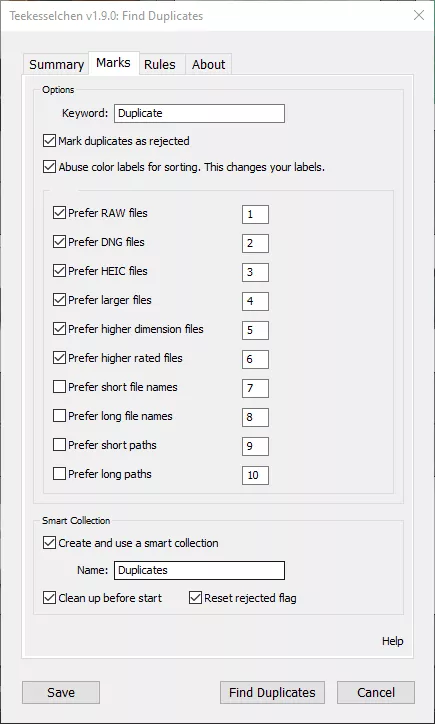
At the bottom of the tab, you can manage how these results are gathered in Lightroom. By enabling “Create and use a smart collection”, the plugin creates a dedicated collection (by default named “Duplicates”) containing all flagged photos. Options like “Clean up before start” and “Reset rejected flag” ensure that results and rejection flags from previous searches are cleared before running a new scan, keeping your catalog organized and up to date.
Step 4: Setting Duplication Criteria and Exclusion in the Rules Tab
The Rules tab allows you to configure which metadata fields Teekesselchen evaluates to identify duplicate photos, as well as set specific exclusion criteria. Under the Options section, you can select hardware and shot properties—such as camera make, model, lens, serial number, GPS coordinates, altitude, capture date, and exposure parameters (ISO, shutter speed, aperture, bias). When selected, photos matching across all these parameters are flagged as duplicates. You can also enable file-based criteria like file name, size, and file type if needed, though relying on capture metadata is generally recommended.
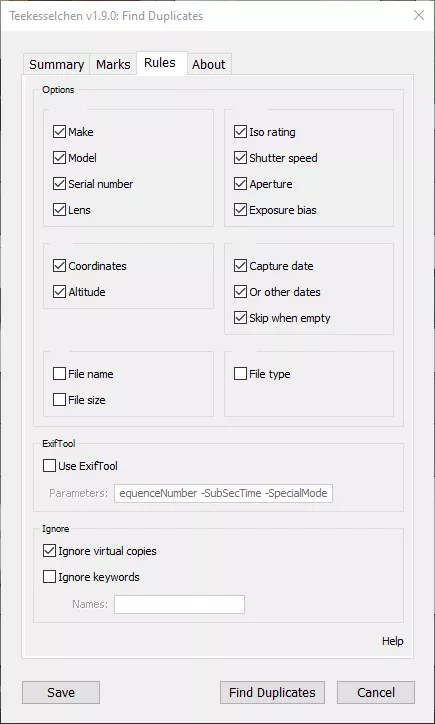
For more granular control, the lower section provides advanced scanning and filtering options. Integrating ExifTool allows the plugin to read sub-second timestamps or burst sequence numbers directly from photo metadata, preventing false duplicates during continuous high-speed shooting. Finally, the Ignore section lets you exclude Lightroom virtual copies to prevent them from being treated as true duplicate files, and allows you to specify custom keywords to skip certain protected or already reviewed images during the search.
Step 5: Review the cloned photos list
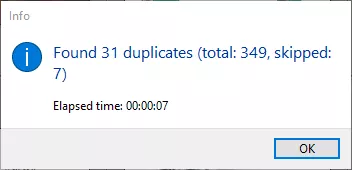
You can start the search by clicking the ‘Find Duplicates’ button. After a few seconds or minutes, the Teekesselchen plugin displays the result. For example, now the dialog box displays that out of 349 scanned photos, the plugin found 31 duplicates and skipped 7 in an elapsed time of 7 seconds.
Click OK and navigate to the smart collection named “Duplicates”. You will see a grid view containing both the original photos and their duplicates.
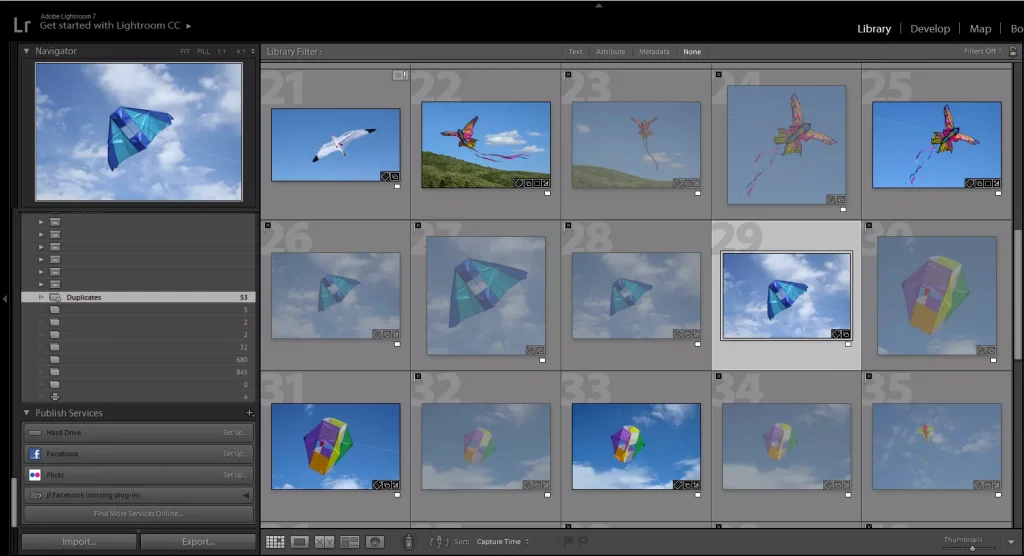
The plugin tags all photos in this collection with the keyword “Duplicate”, as indicated on the summary page shown before the scan. However, it does not mark all of them as rejected—only the duplicates. After reviewing and adjusting the flags if necessary, switch back to All Photographs (or your main folder). From there, choose Photo > Delete Rejected Photos… to remove the duplicates. This step is necessary because Lightroom Classic does not allow deleting rejected photos directly from a smart collection.
Keep in mind that this operation will delete all rejected photos in your catalog, not just the duplicates from the latest scan. (Note: If configured, the plugin can reset existing rejection flags prior to scanning to help avoid this.)